
01
Generate a Real Continuation, Not a Loop
Create new prompted action after the selected point instead of duplicating frames, slowing the clip down, or repeating the same footage.
Prompt-guided video continuation
Use AI Video Extend to continue a completed MuseVideo clip by 6 or 10 seconds. Select a source from My Creations, choose where to continue, and guide the next action with a prompt.
Choose a compatible completed video from My Creations, set the continuation point, and describe the next action. AI Video Extend adds 6 or 10 seconds without rebuilding the opening shot.
0/4096
Selecting a source automatically uses its final second. You can still adjust it, but not earlier than second 2.
The selected duration is added after the continuation point.
Source preview
Review the selected clip before extending it.
Please select the video to be extended
Sign in and select a completed AI video generation from My Creations.
Why extend instead of regenerate
Use an AI video extender when the opening shot already works and only the ending needs more motion, time, or narrative resolution.
Create new prompted action after the selected point instead of duplicating frames, slowing the clip down, or repeating the same footage.
Choose a continuation point that preserves the strongest part of the source video and changes direction only from a deliberate moment.
Reinforce identity, movement, lighting, and pacing in the prompt while the source task supplies visual context for a more coherent next beat.
AI Video Extend controls
AI Video Extend uses the completed source task as context, then generates a new continuation that follows your selected timing, duration, and prompt.
Scene continuity
Continue the existing shot with its subject, camera direction, lighting, and pace as the visual starting point for the added footage.
From 2 seconds
Set the second where the new sequence branches so you can keep the strongest opening and redirect only the part that needs more time.
Natural language
Describe the next movement, camera behavior, atmosphere, and pacing so the AI video continuation follows a specific creative direction.
6 or 10 seconds
Choose six seconds for a quick transition or ten seconds when a reaction, reveal, or camera move needs more room to resolve.
Use AI Video Extend when a promising clip ends too early for the platform, voiceover, transition, or story beat you need.
Give a product reveal, transformation, or character moment enough time to land without padding the edit with a freeze or repeated loop.
Carry a reaction, camera move, or environmental change into the next beat while keeping the original visual direction recognizable.
Generate extra motion after the key action so editors have more usable footage for narration, titles, transitions, and pacing adjustments.
Start with a completed video from any MuseVideo AI video generator, then describe only the continuation you need.
Step 1
Select a completed video task from My Creations. The connected API does not accept external video uploads.
Step 2
Choose where the continuation begins, then add either six or ten seconds to the sequence.
Step 3
Direct the next action, camera move, and atmosphere, then generate and review the longer result.
Complete operation guide
Follow these steps to generate a source clip, select it from My Creations, write a focused continuation prompt, and make the AI video longer online.
Works with completed MuseVideo AI videos·External uploads are not supported by the connected extension API
Step 1
Open any MuseVideo AI video generator. Create the opening clip with Text to Video, or use Image to Video when you want to begin from a reference image. Describe the scene, subject, visual style, and first action clearly so every later extension has a strong foundation.
Wait until the video is complete and visible in My Creations.
Step 2
Return to this page from the AI Video menu. MuseVideo loads the compatible completed video tasks associated with your account, so you do not need to find or paste a provider task ID.
Sign in with the same account used to generate the opening video.
Step 3
Choose the video you want to continue from the Source Video menu and review it in the preview panel. Pick the second where the new continuation should branch from the original action.
Use a continuation point from 2 seconds onward and keep the strongest part of the source clip.
Step 4
Describe what happens next, including the subject's action, camera movement, pace, and atmosphere. Select a 6-second or 10-second extension; the source resolution is detected automatically for billing.
Keep the prompt focused on the next visible beat instead of retelling the entire scene.
Step 5
After the result finishes, it is automatically saved to My Creations. Refresh the source list, choose the newly extended result, write the next continuation prompt, and repeat the workflow to build a longer sequence.
Download strong checkpoints before exploring a different narrative direction.
Extension prompt guide
A useful continuation prompt identifies the same subject, gives it one concrete next action, directs the camera, and repeats the visual details that must not drift.
Opening video
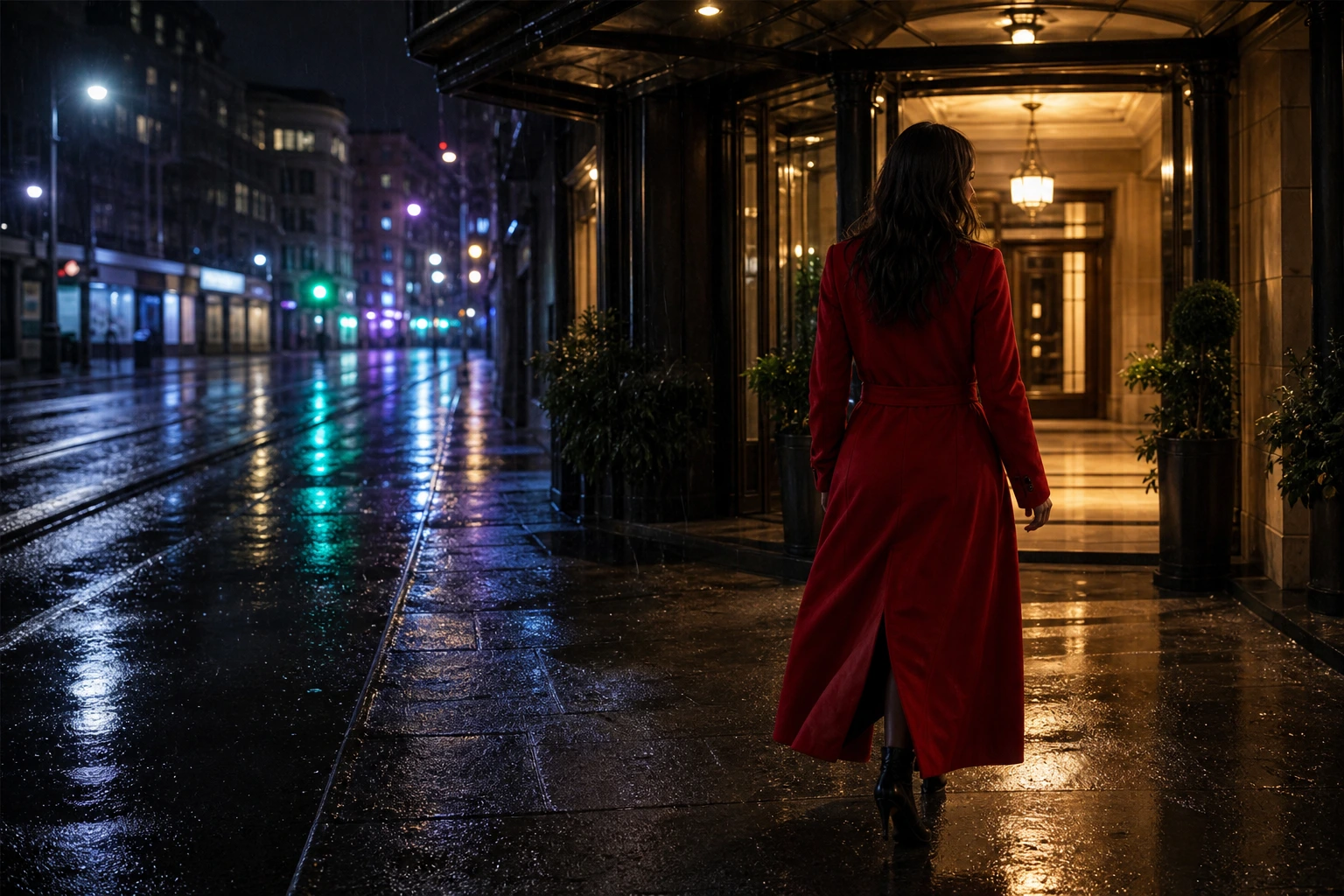
A woman in a red coat pauses beneath a neon sign in the rain as the camera slowly tracks beside her.
Continuation prompt
The same woman closes her umbrella and walks toward the glowing doorway; the camera continues tracking at the same pace, preserving the red coat, blue-magenta neon reflections, rain, and cinematic night style.
Begin with an action that naturally follows the final moment of the source clip instead of introducing an unrelated event.
Restate distinctive clothing, hair, accessories, colors, or product attributes that need to remain recognizable.
Carry forward important lighting, color palette, lens, medium, and atmosphere terms from the opening prompt.
Replace vague phrases such as “the character moves” with a concrete motion, direction, pace, and camera response.
Keep creative momentum by extending a successful generation directly from your MuseVideo history.
Avoid recreating the part of a shot that already has the right subject, framing, and mood.
Keep the opening
Choose the source, continuation point, and duration in one focused generator.
Three choices
The Generate button reflects source resolution and extension length before submission.
Credits shown first
Continue from the existing KIE task rather than reconstructing its visual setup from a prompt alone.
Source-task context
Choose the extension length that fits a transition, reaction, reveal, or longer action.
+6s or +10s
Completed extensions are persisted with the rest of your generated video library.
Saved automatically
Answers about compatible source videos, extension length, prompts, credits, and repeated AI video continuation.
Use AI Video Extend to select a completed MuseVideo clip, direct the next beat, and create a longer prompt-guided continuation online.