Selfie to Zombie Dance
A home selfie steps back into a playful claw-hand dance.
Turn one clear character photo into an AI Thriller Dance video with a ready-to-edit zombie dance prompt. Choose 4–15 seconds, set a format for TikTok or Reels, and review credits before generating. The model interprets the movement; exact choreography can vary.
One clear person, with face and body visible. A dance prompt is ready to use.
JPEG, PNG, or WebP · up to 10 MB each
Generate audio
Include model-generated sound when available.
The model uses this prompt for every video in the batch. Results can vary.
Reference video from SuperMaker. Generation uses your photo and the editable dance prompt; this video is not sent to the model.
Your character photo, a prepared dance prompt, and a clip to review
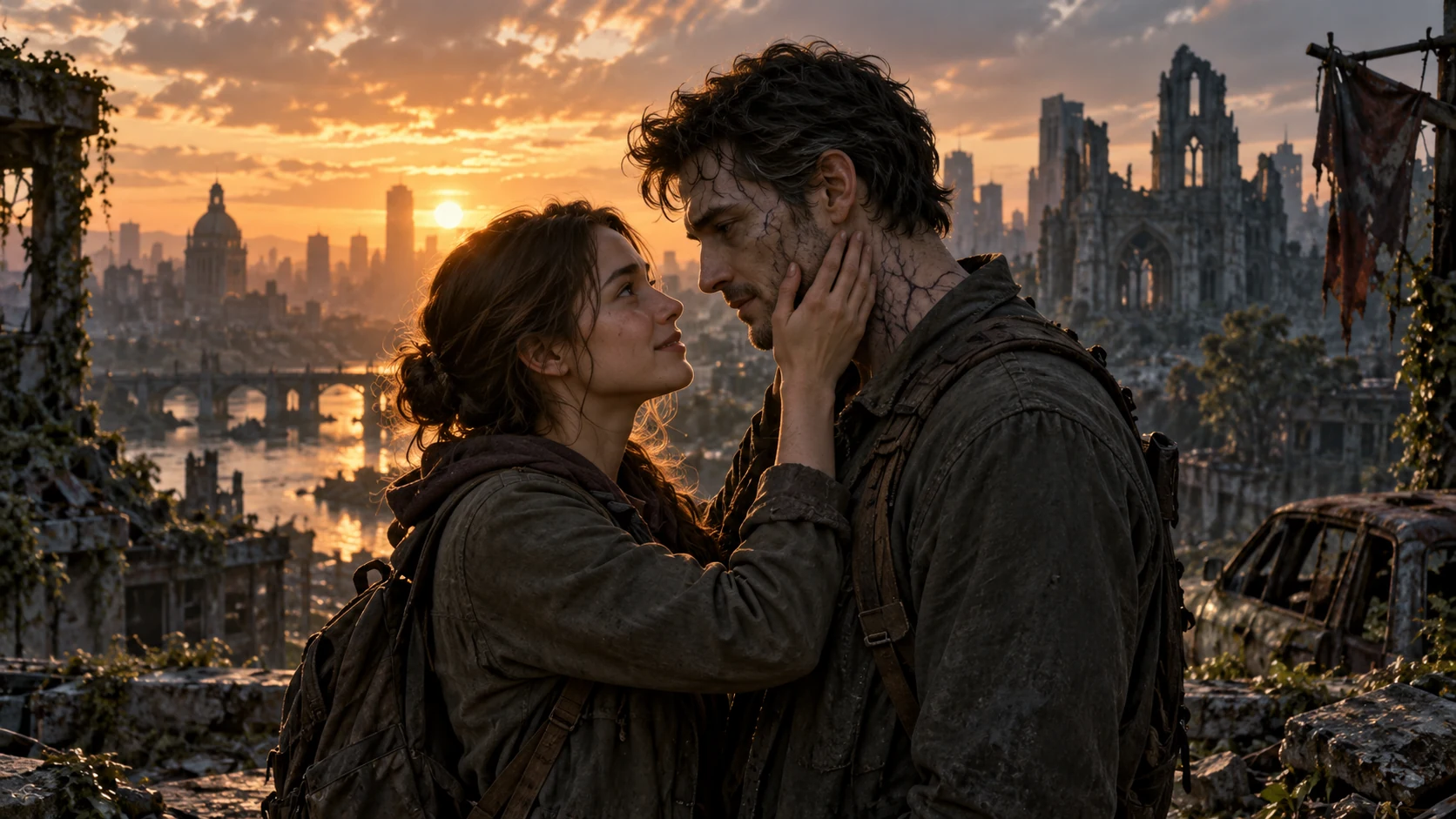
AI Thriller Dance uses one photo as a character reference for a short zombie-inspired performance. Start with the prepared shoulder shrugs, claw-shaped hands, and side steps, or edit the prompt to describe your own scene. Choose the length, aspect ratio, and supported resolution before generating. This workflow uses your photo and prompt; it does not transfer fixed choreography from the sample video.
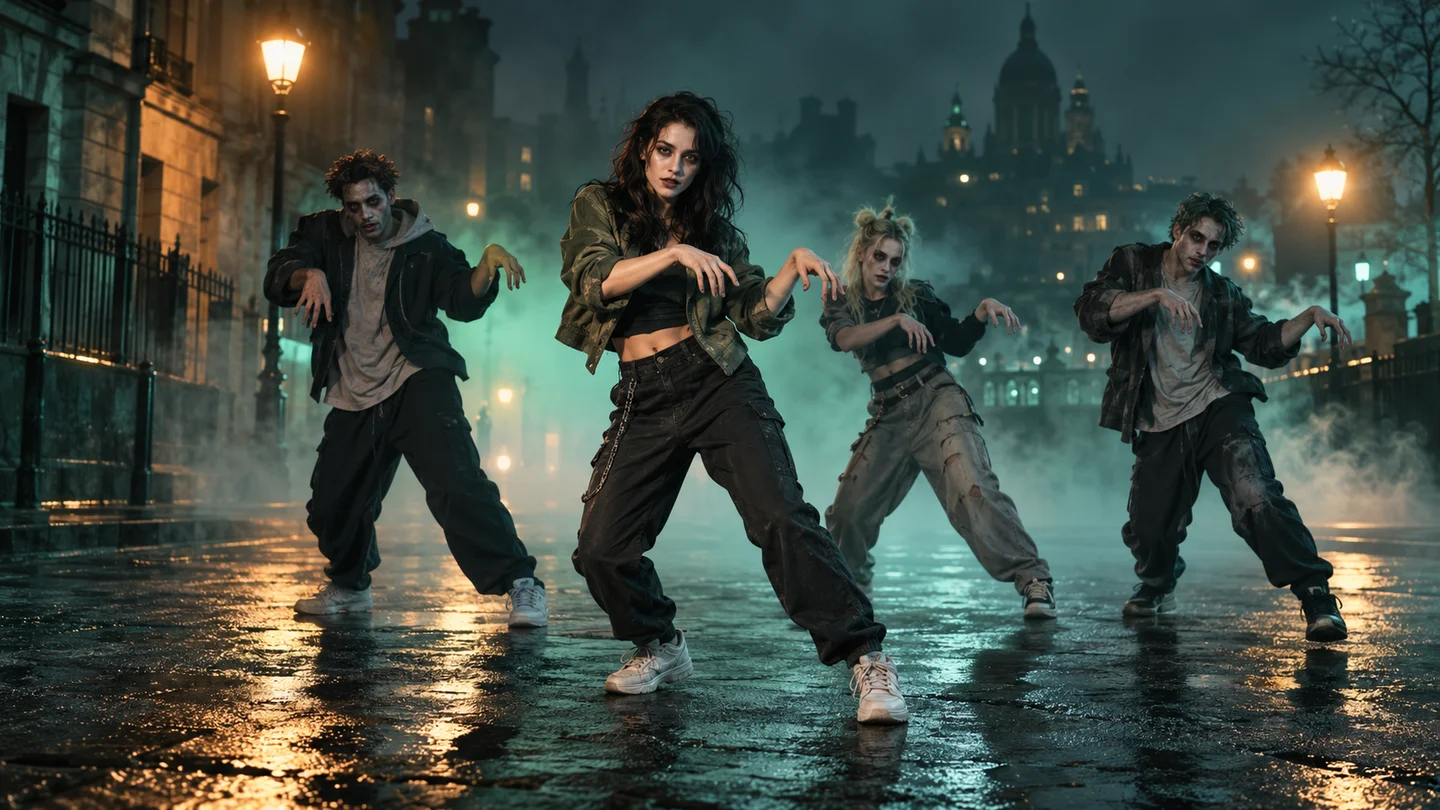
Watch four reference videos for dance and scene inspiration. These are third-party examples, not MuseVideo outputs or choreography templates.
A home selfie steps back into a playful claw-hand dance.
A solo dancer performs among pumpkins and gravestones.
A costumed group dances together in a warmly lit hall.
A leather-coated lead dancer moves with a skeleton-costumed crew.
Choose a scene for a Halloween greeting, a vertical social post, or an original character test.
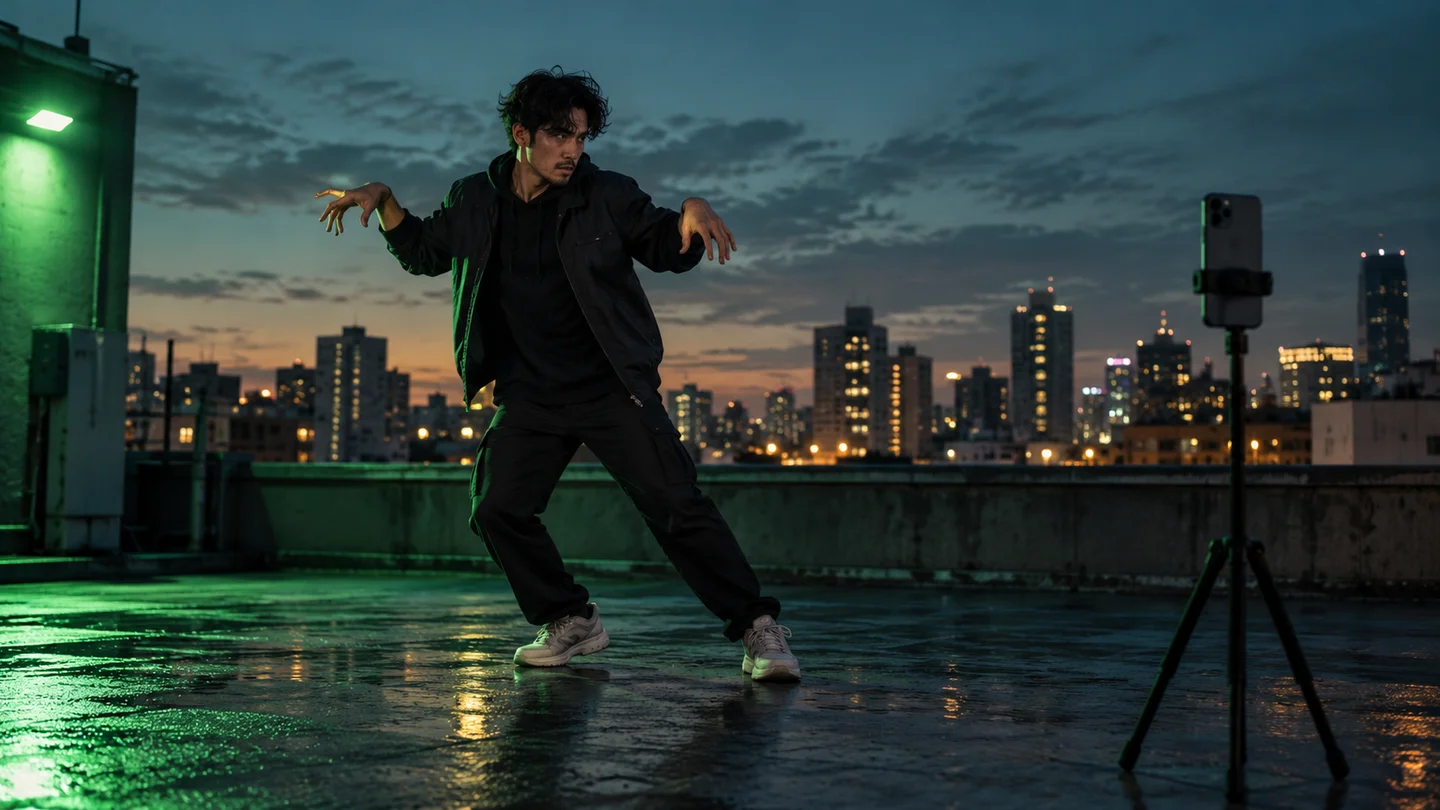
Choose 9:16 for TikTok or Instagram Reels, then describe a simple step and keep the lead character in view. Preview the clip and optional generated audio before posting.
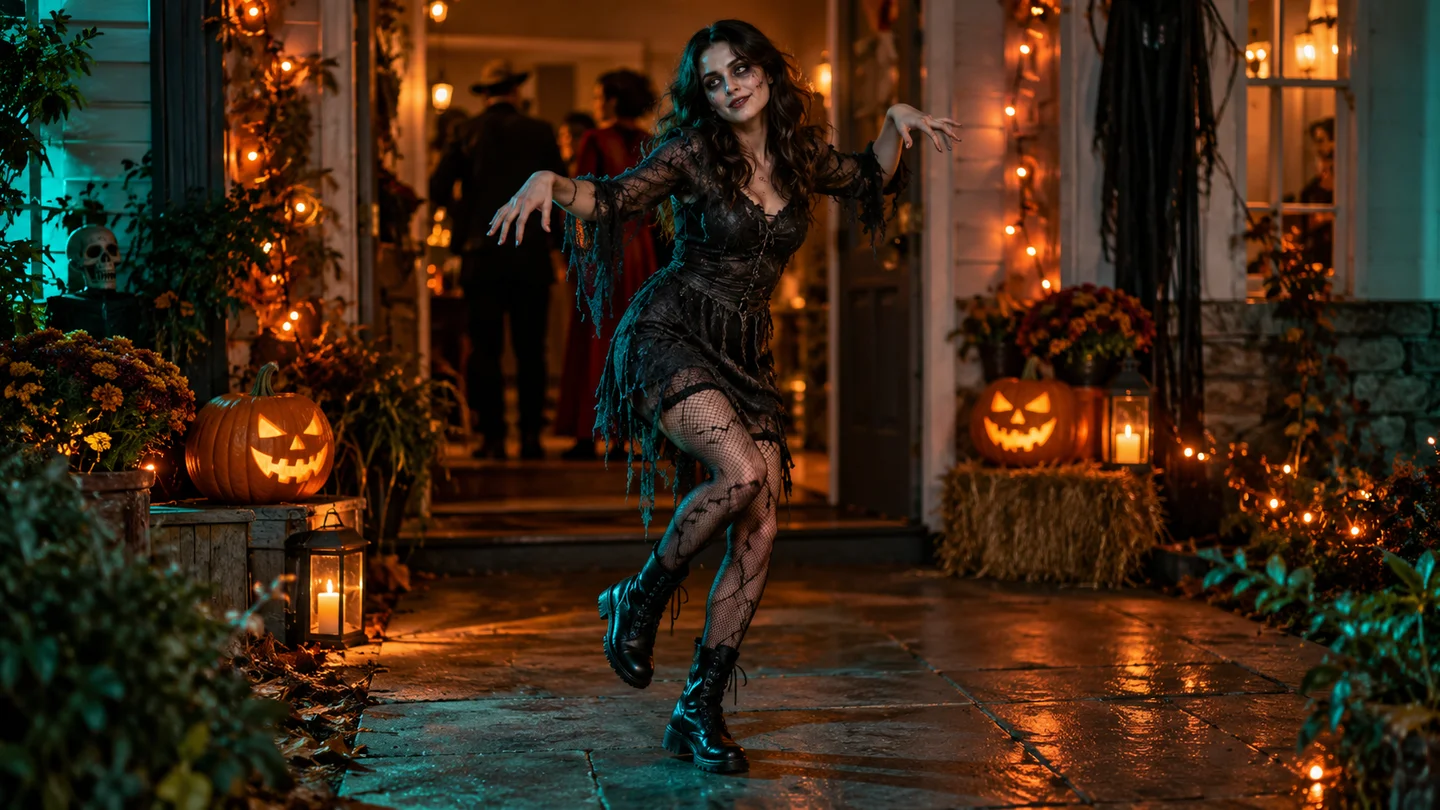
Put a familiar face into a short, non-graphic dance for a costume-party invitation or Halloween greeting. Review the generated face and movement before sharing.
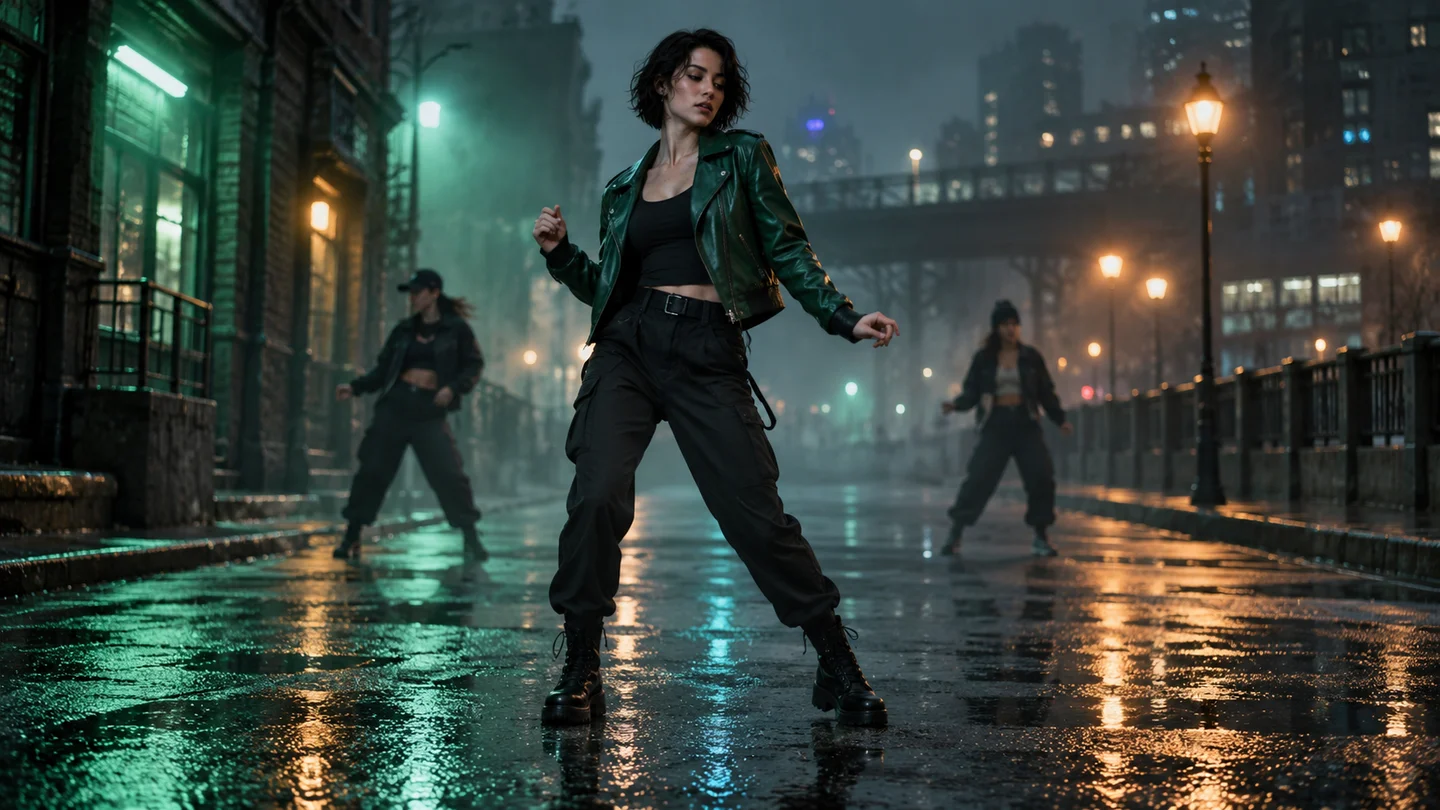
Upload an original character photo and describe a foggy street, background dancers, and one camera move. Compare up to four variations to decide which direction to develop.
02Creative Controls
Prepare a useful photo, describe a manageable movement, and check the framing before using credits.
A clear photo with visible clothing, arms, and legs gives the model more character detail. Start with one simple movement and a wide shot for a Halloween clip. The photo guides appearance; it does not guarantee facial identity or every dance step.
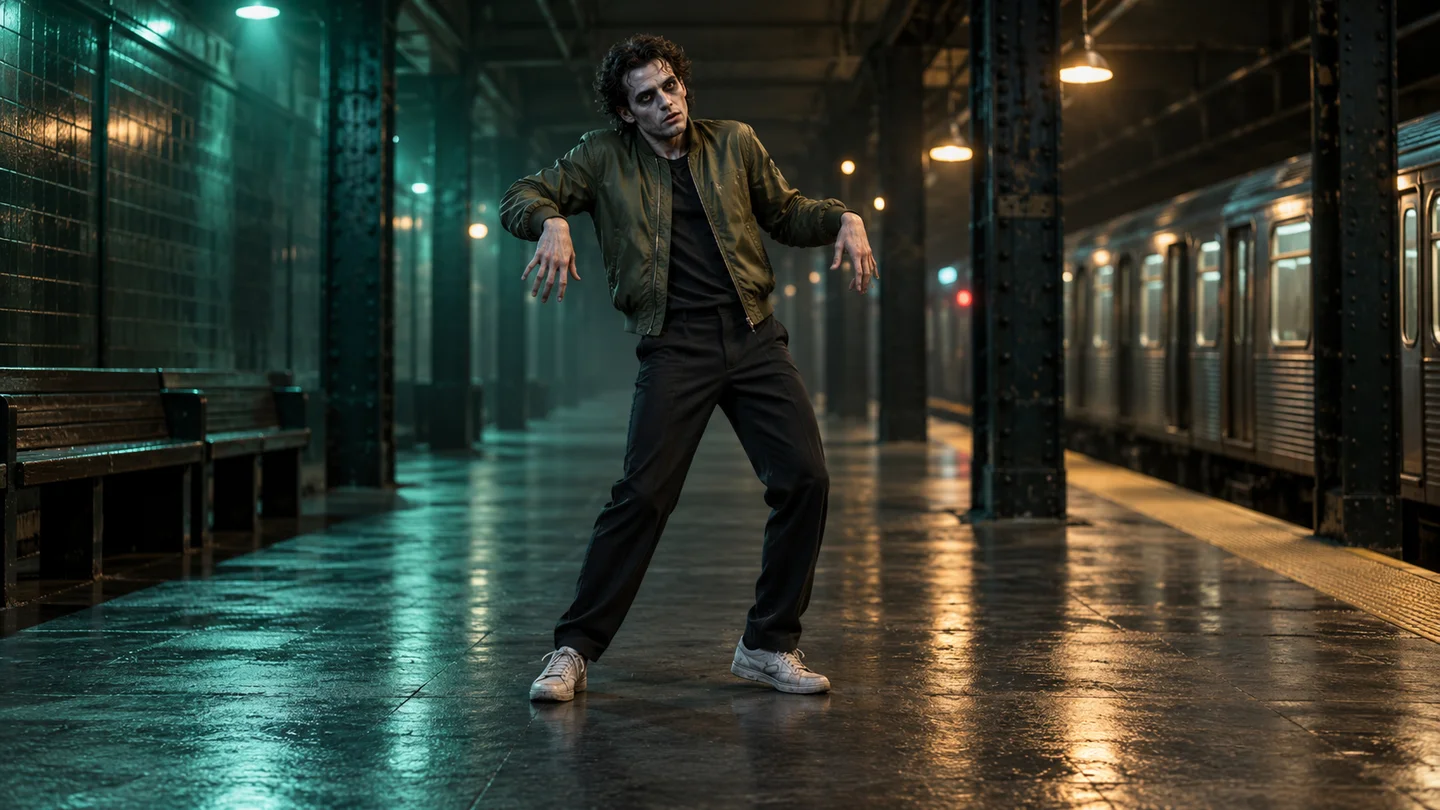
Use Advanced settings to change the prepared dance prompt, choose a model, or switch generated audio on or off. Describe a shoulder shrug, claw gesture, or side step rather than a long routine, then check the final prompt before generating.
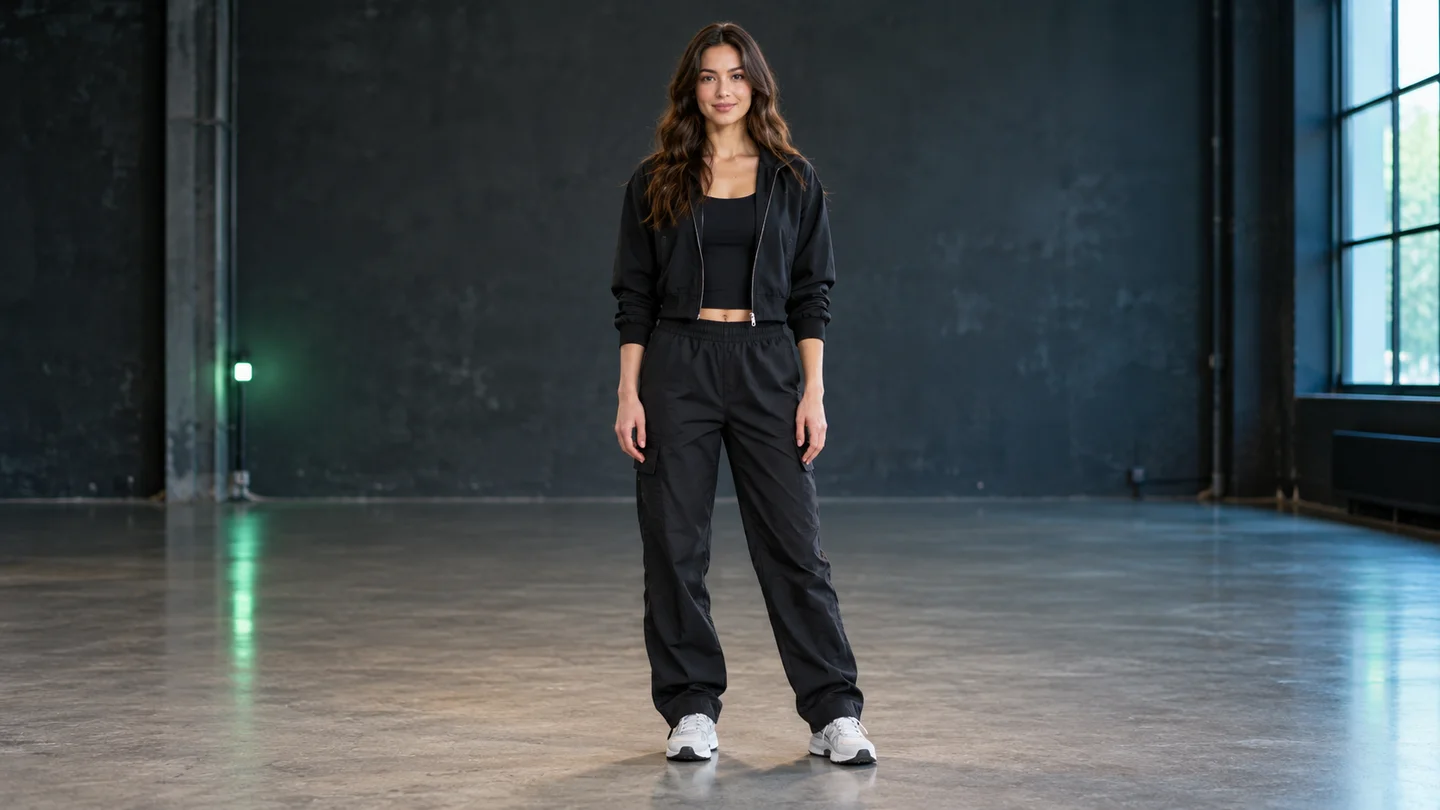
Before upload, your browser flags photos with a shorter side below 720 pixels or a shape far from the selected output ratio. Auto chooses a supported ratio close to your photo. These are size and shape checks, not face-recognition or choreography checks.
Explore photo-led dance ideas in your browser, with visible settings and costs.
Use a clear character image without recording yourself performing the dance.
One-Photo Start
Keep the starting dance direction or change the setting, movement, lighting, and camera shot in Advanced settings.
Prompt Control
Review the total for the selected model, length, resolution, and number of clips before sending a generation request.
Visible Cost
The prepared prompt asks the model to preserve recognizable facial features. Review the result; likeness can vary.
Character Reference
Generate 1–4 clips from one photo. Each clip uses the displayed per-video credit cost.
Creative Range
Watch each completed dance clip, check hands, feet, facial detail, and generated audio, then download the video you want to share.
Usable Output
Upload, choose, generate, and download in the browser.
Upload one JPEG, PNG, or WebP up to 10 MB, or choose a saved image from Assets Library after signing in. A well-lit full-body photo provides more information about the character’s outfit and limbs.
Keep the prepared dance prompt or edit it in Advanced settings. Select 4–15 seconds, choose Auto or one of six aspect ratios, and pick a supported resolution. Set 1–4 videos and review the total credits.
Sign in with eligible paid access and generate your dance video. Preview the finished movement and optional audio, then download the result. If a task is still processing, check that existing task again instead of submitting it twice.
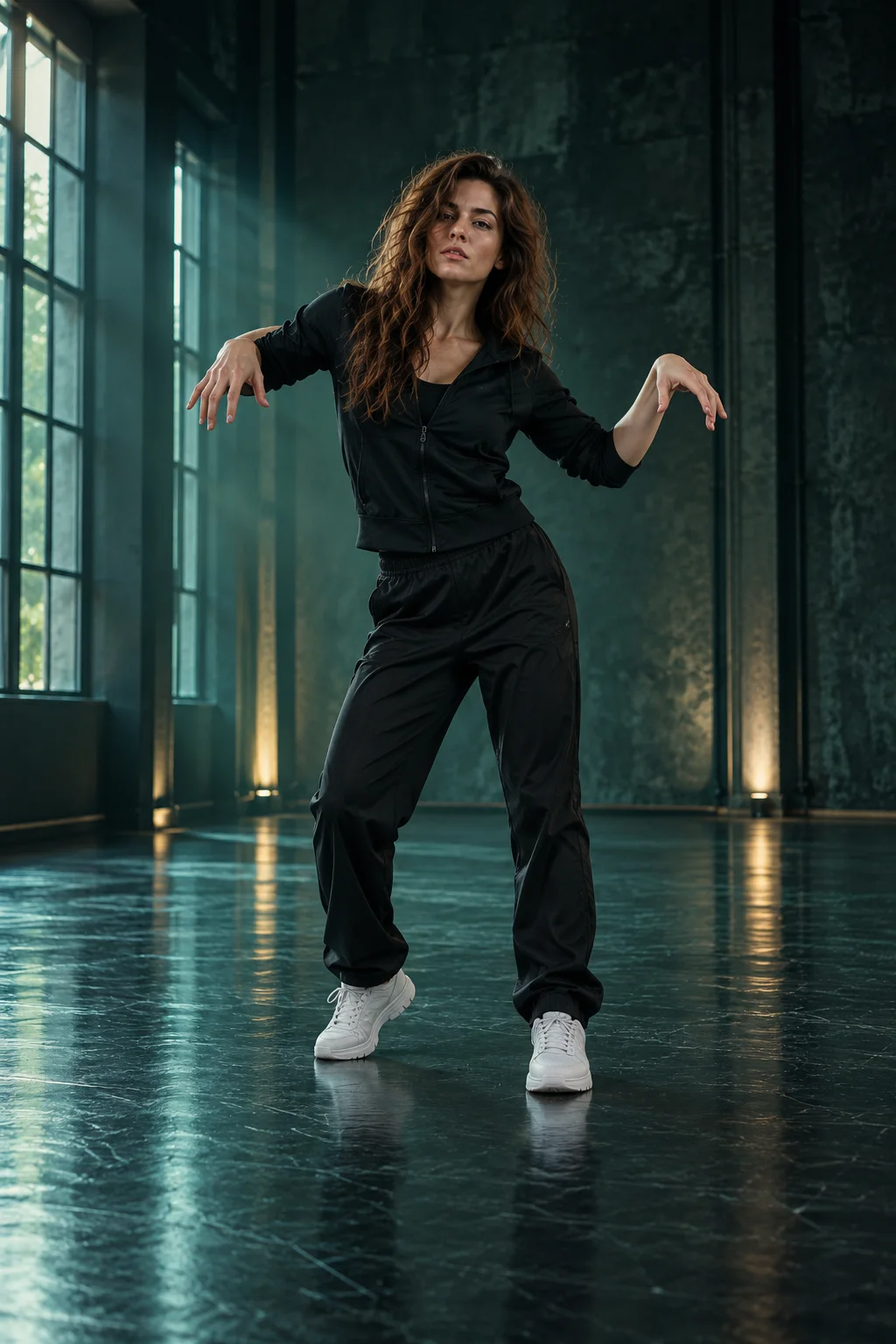
One-photo inputs, mobile use, Halloween posts, credits, and generated audio.
More to explore
Explore related zombie effects, photo animation, and video-generation tools.
Upload a clear character photo, choose a short dance direction, and check the credits before turning it into a video.